W/004
/
Shop-floor workflows
← All work
Manufacturing execution · Flutter · Tablet + desktop · Real-time

KBK Production: every steel door, tracked station by station

KBK Production is Stålprofil AB's shop-floor system for steel doors and profiles. Spot Software took part in its development together with Stålprofil's in-house development team. Arnela Glavović started the collaboration, and another developer from Spot Software later joined the project.

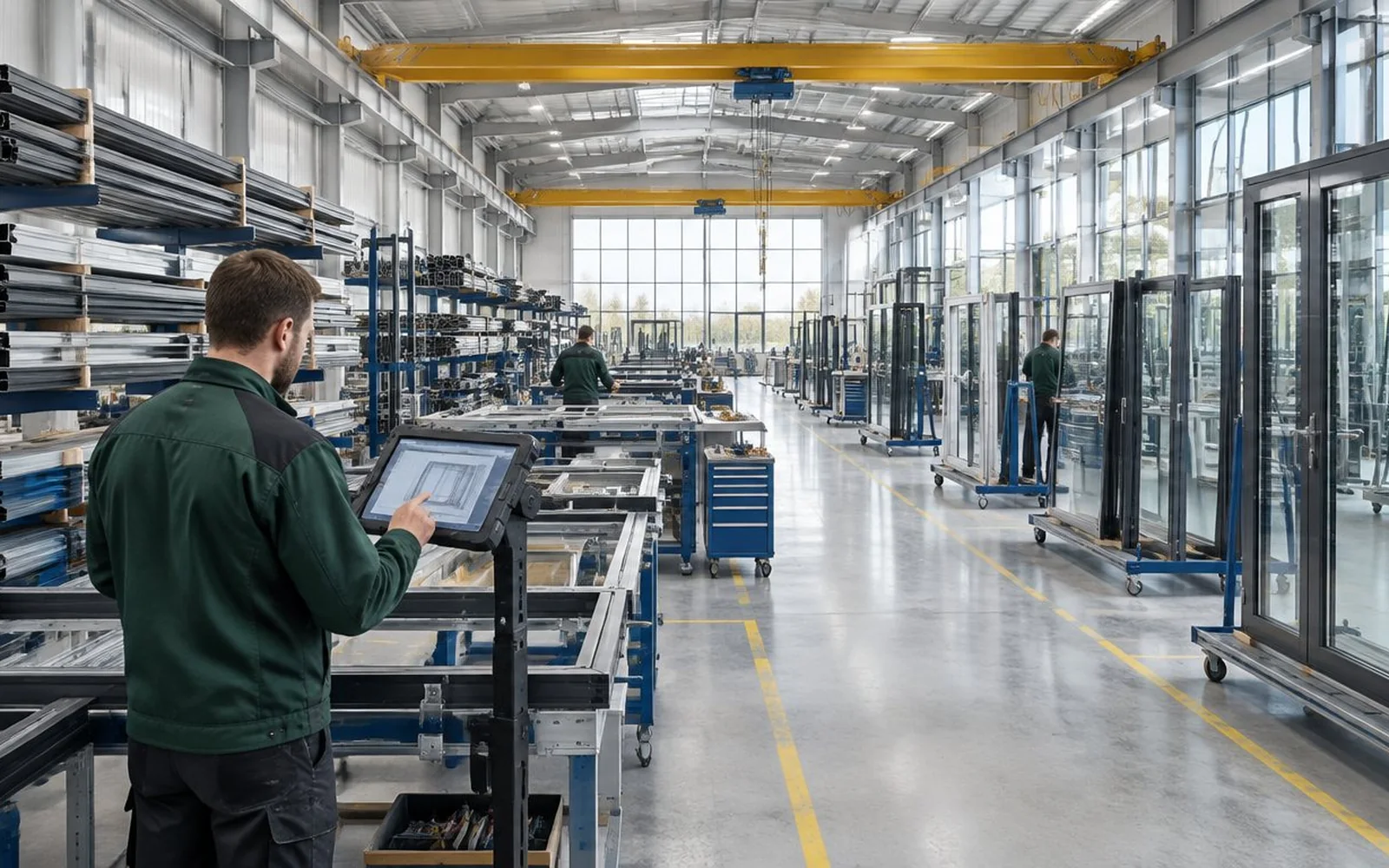
Operator at a KBK Production station tablet in Stålprofil’s factory hall, with glazed steel door frames on trolleys
Client
Stålprofil AB
Our role
Server and tablet app development, together with Stålprofil's in-house development team
Users
Operators at 8 station types, production planners
Integrations
KBK business system: jobs in, recorded time out
Location
Uddevalla, Sweden
Project type
Manufacturing execution system
Period
Within the 2016–2023 collaboration
Services
Custom Software Development
Technology
Flutter · WebSocket + Protobuf · MySQL · KBK integration
/ Challenge
N. 01

A glazed double door passes through eight hands before it ships.

Stålprofil’s systems go into hospitals, shopping centres, arenas and government buildings, where doors must meet strict fire, insulation, bullet-resistance and blast requirements. Every order is cut, milled, welded, filled, painted, assembled and packed, often by different people at different stations. Before KBK Production, operators worked from printed drawings and part lists, and times were written on paper and typed into the business system at the end of the week.

That meant outdated drawings on the floor, no live view of where a job was, and costing based on estimates instead of real hours. The goal was a system that puts the right drawing in front of the right operator, records exactly how long each step takes, and sends that data back to KBK without anyone retyping it.

Right drawing, right station

The current revision opens automatically for the job and station in front of the operator.

Real hours, not estimates

Every second of run, setup and pause time recorded per job, per operator, per category.

Quality sign-off

A job cannot move on until its control checks are ticked and signed.

No double entry

Jobs arrive from KBK and time flows back to it automatically.

/ Workflow
N. 02

Eight station types. One job flowing through them.

Each job has a route of station types. When an operator signs off a step, the server moves the job to the next station in its route, where it appears in that station’s queue instantly. Select a station to see what happens there.

Cutting

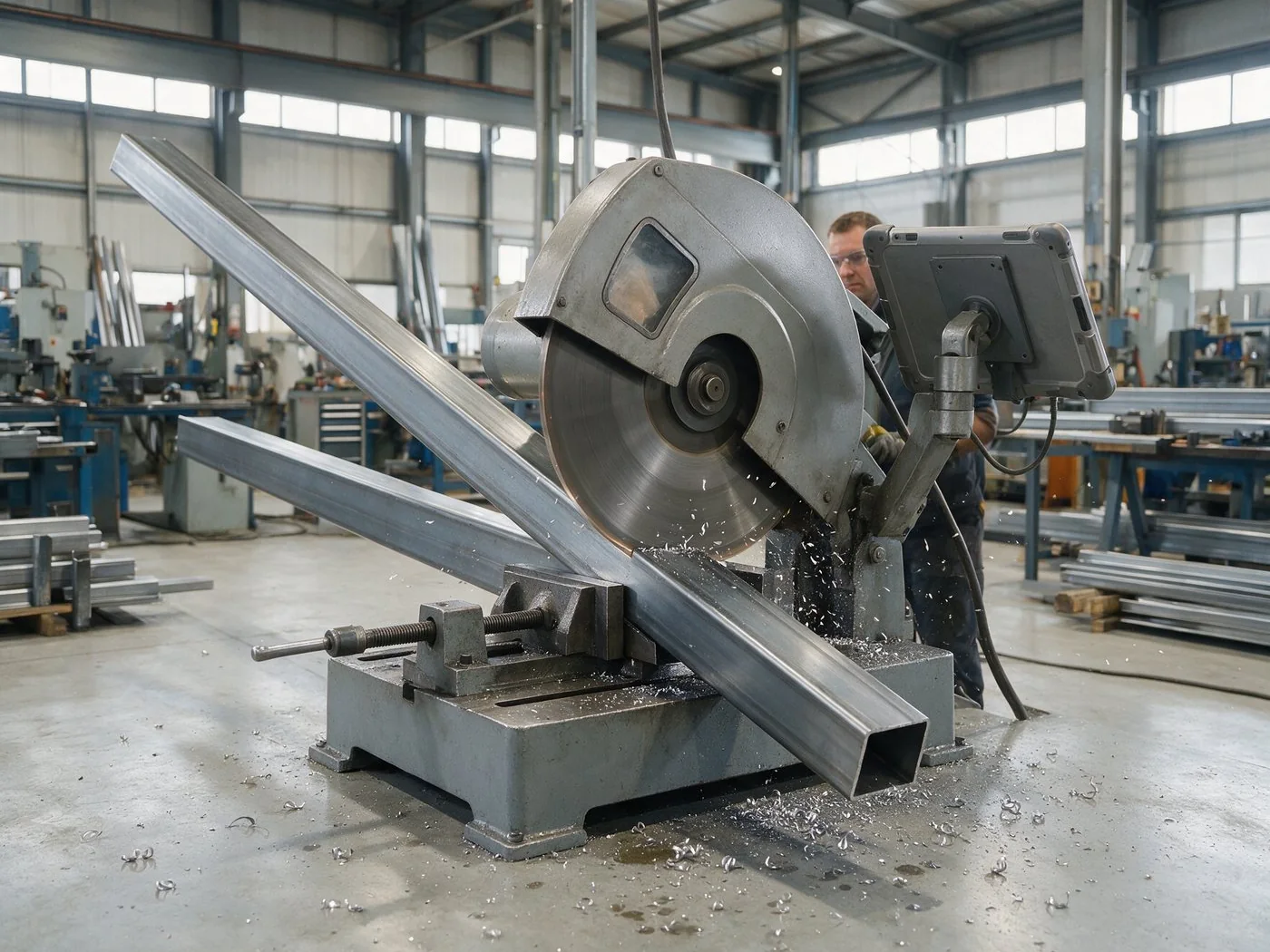
Steel profiles are cut to length and mitred on the automatic saw from the cutting list. The operator ticks each piece as it comes off the saw.

Opens Drawing PDF, cutting list

Control checks Lengths within ±0.5 mm, angles verified

Next Milling prep

Milling prep

Profiles are clamped, marked and set up for the milling machine. Time is tracked separately, so setup is never hidden inside machining time.

Opens Milling list

Control checks Correct profile and orientation

Next Milling

Milling

Pockets for hinges, locks, closers and magnetic contacts are milled into the profiles. The milling list gives each position and offset.

Opens Drawing PDF, milling list, hardware list

Control checks All hardware positions milled

Next Welding

Welding

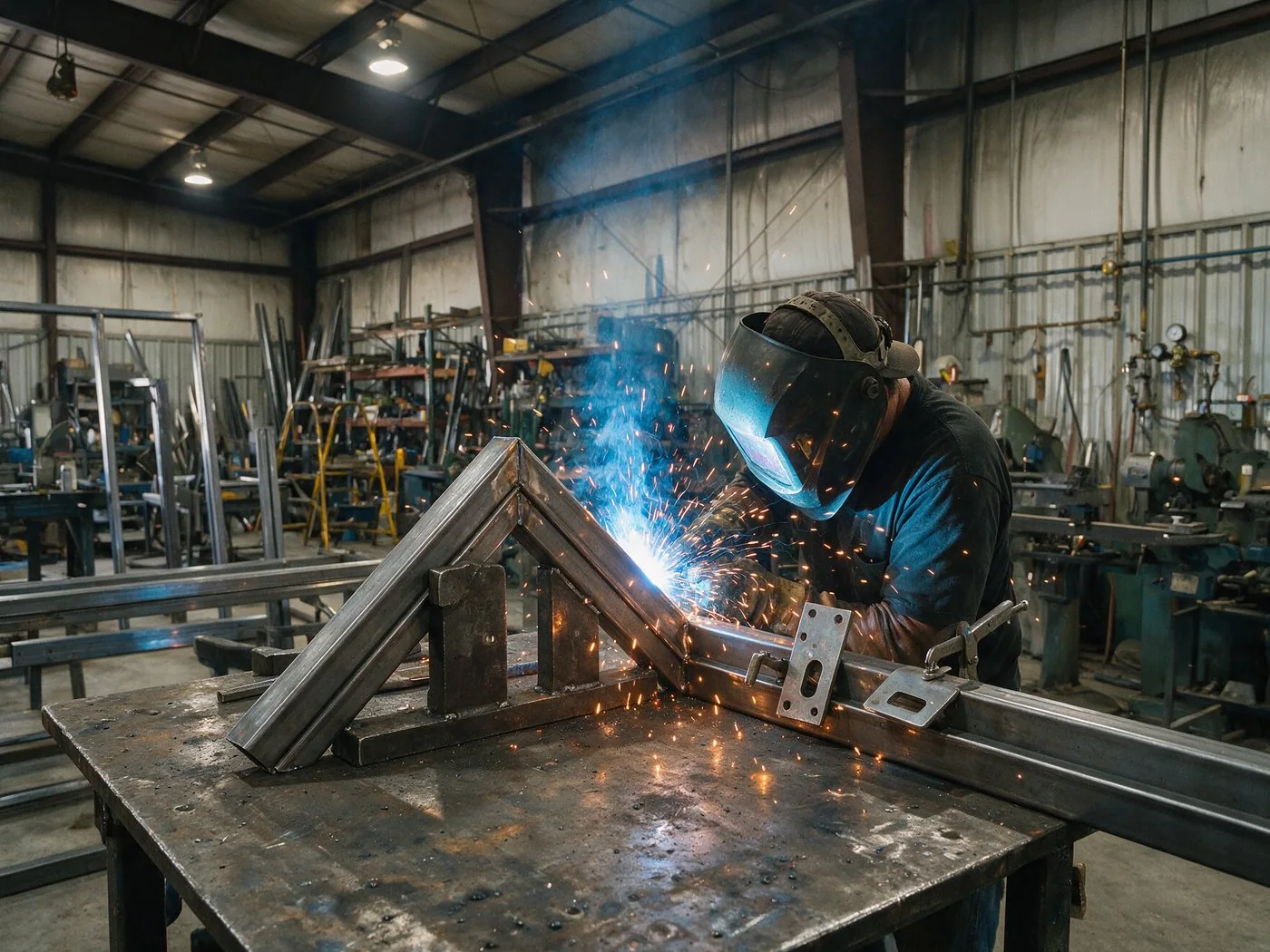
Frames and leaves are welded in jigs, then ground clean. The drawing shows profile numbers P1–P12, so every joint is in the right place.

Opens Drawing PDF

Control checks Diagonals measured, welds ground

Next Filling

Filling

Insulation and filling panels are fitted where the door type requires them, for fire and thermal ratings.

Opens Drawing PDF, packing list

Control checks Filling type matches rating

Next Painting

Painting

Frames are powder coated in the RAL colour on the job card. Two-colour finishes carry a note, so the painter masks the right faces.

Opens Colour list

Control checks RAL code and surface class confirmed

Next Assembly

Assembly

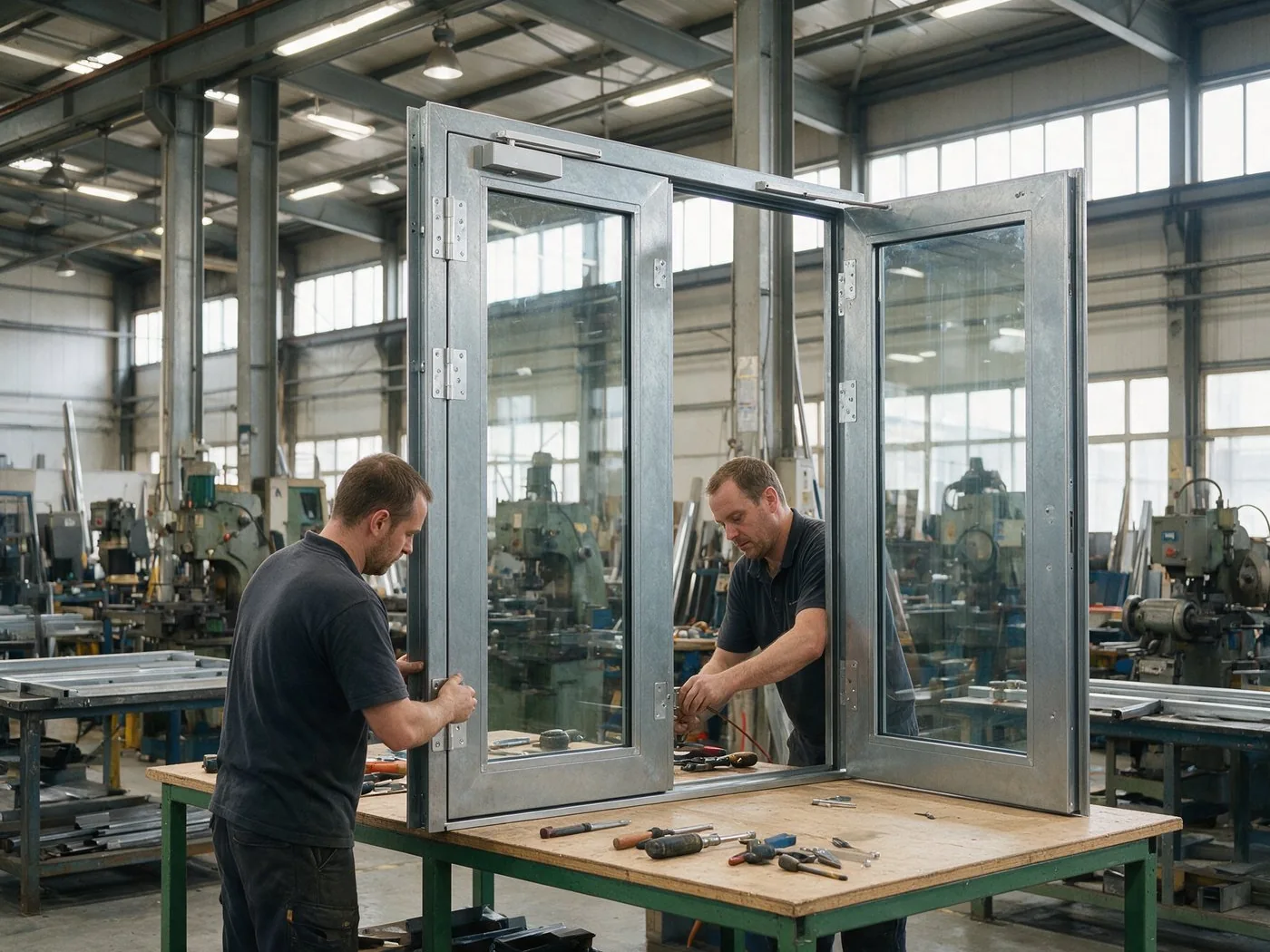
Glass, hinges, closers, locks and contacts are fitted. The hardware list is the checklist, ticked line by line.

Opens Drawing PDF, hardware list, cover plate list

Control checks Every hardware line fitted and tested

Next Packing

Packing

The finished door is protected, labelled and packed for delivery. Signing here completes the job and closes its time in KBK.

Opens Packing list

Control checks Label, protection and loose parts packed

Next Job complete, time exported to KBK

The operator loop: eight taps from picking up a job to handing it on

Operators wear gloves and stand at a machine. The whole flow was designed for a mounted tablet: big targets, one decision per screen, and nothing to type.

  1. Choose user: pick your name from the list on the shared tablet.
  2. Choose station: select the station you are working at, for example welding.
  3. Browse the queue: see jobs waiting for this station type, grouped by project.
  4. Start a job: one tap starts the clock for you on this job.
  5. Open drawing and lists: the PDF drawing and work lists for the job open in place.
  6. Check and add helpers: tick control checks and add colleagues who help.
  7. Sign and complete: the job moves to the next station type in its route.
  8. Next job or leave: pick the next job, or leave the station to end the session.

After step 7 the loop returns to step 3 for the next job, or ends with “Leave station”.
/ Roles
N. 03

/ Inside the product
N. 04

Designed around the operator at the machine.

Three screens carry almost all of the work on the floor, and one server keeps every station in sync.

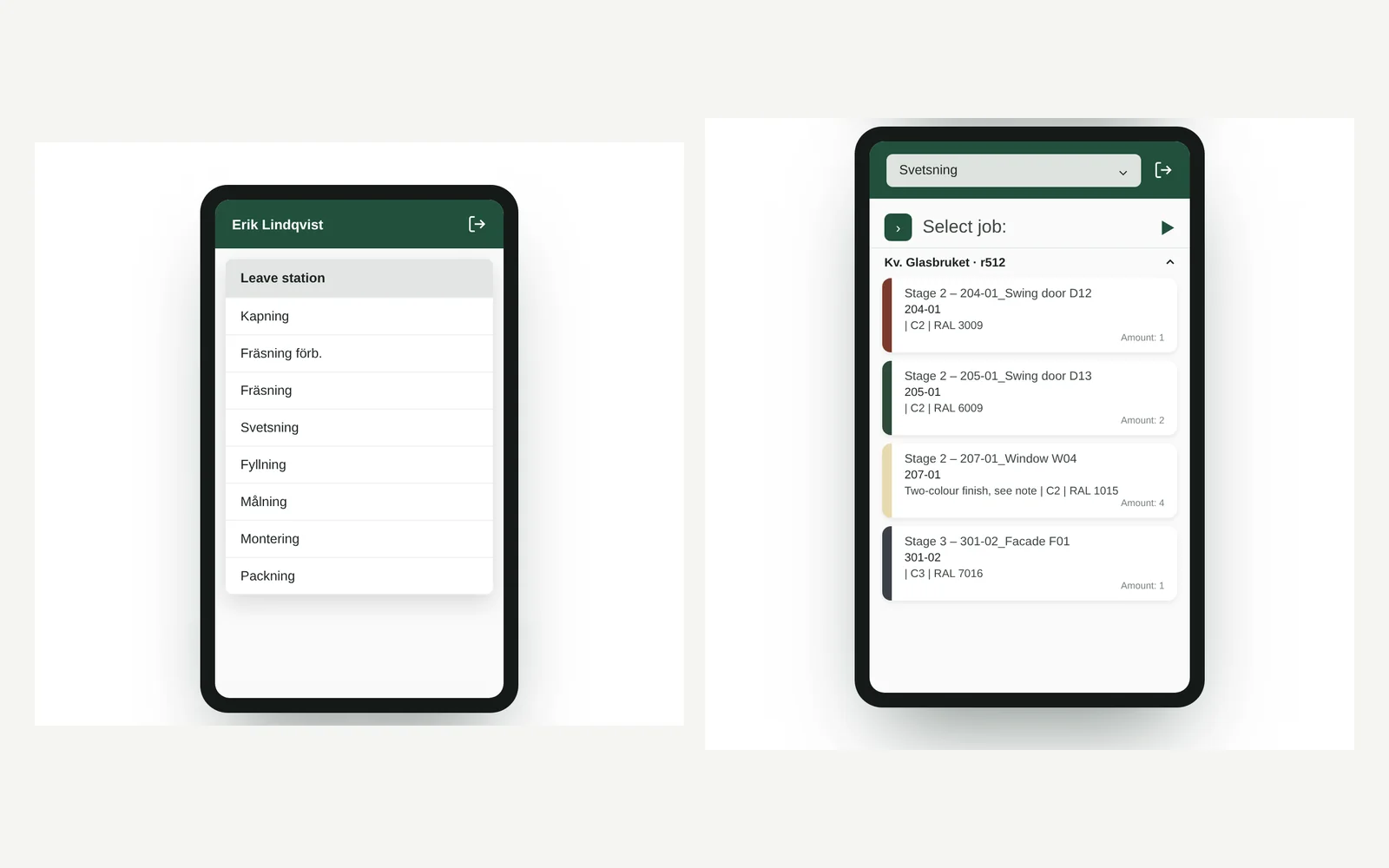
Sign in and pick a station

“No passwords at the machine.”

Operators choose their name from a list and pick the station they are standing at. The job list then shows only work waiting for that station type, grouped by project and stage, with the colour stripe matching the RAL finish so painted parts are recognised at a glance.

  • The interface is available in Swedish and English, chosen on the login screen.
  • Each job card shows stage, item number, surface class, RAL colour and quantity.
  • Queues update live over WebSocket when another station signs off a job.
Two station tablets in KBK Production: choosing a station, and the job queue for Svetsning with RAL colour stripes
Pick a station, then see only the jobs waiting for it, grouped by project.

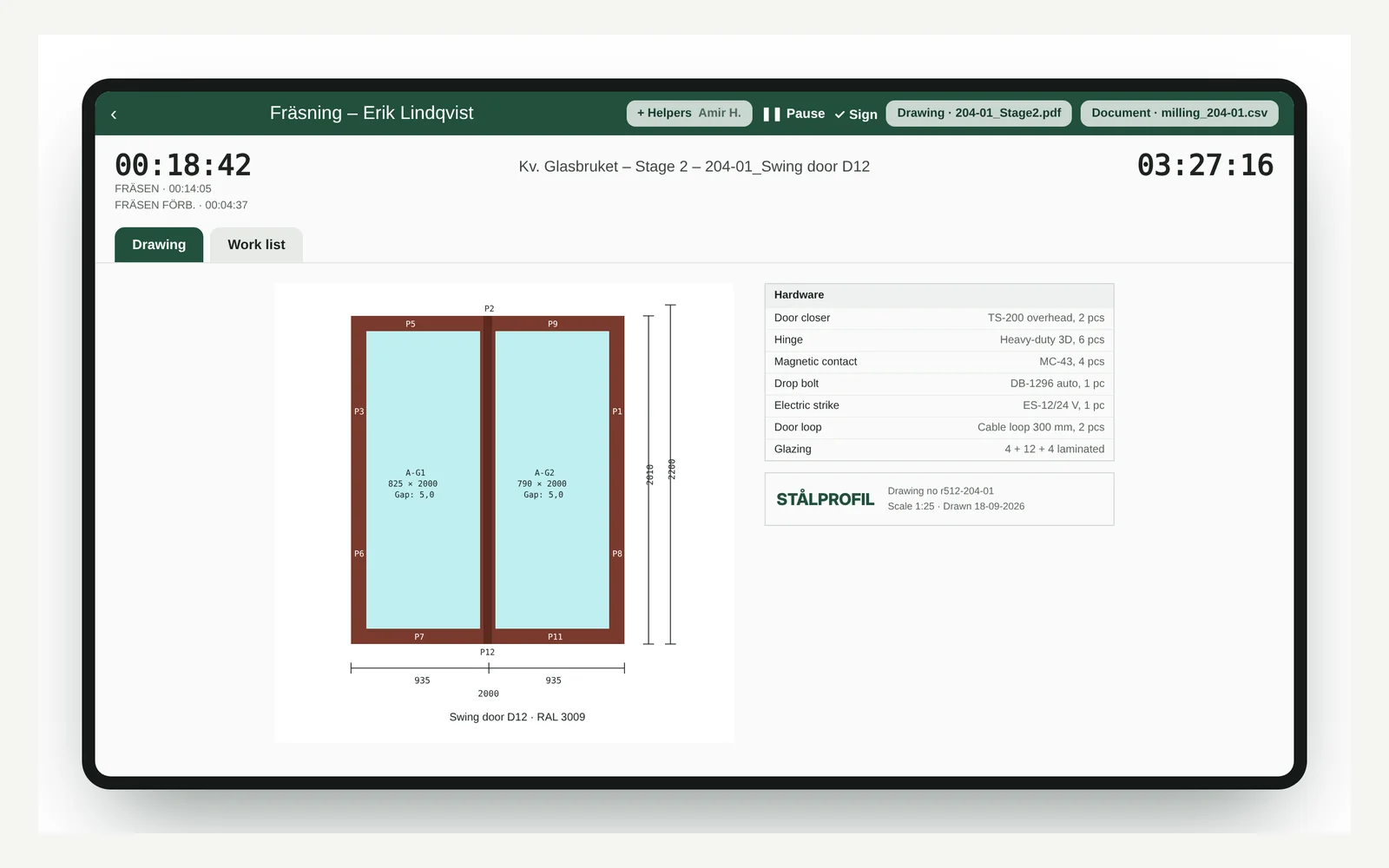
The job workspace

“The drawing, the list and the clock in one view.”

The top bar holds everything the operator needs: add helpers, pause, sign, switch drawing and open a work list. Two clocks run at once: the job clock on the left with time per category, and the operator’s shift clock on the right.

  • The current drawing revision opens automatically for the job and station.
  • Hardware for the door is listed beside the drawing.
  • CSV work lists for cutting, milling, colour, hardware, packing and cover plates open in place.
KBK Production job workspace on a tablet: door drawing, hardware list, job clock and shift clock
Milling a swing door: drawing, hardware list, job clock with time per category, and the shift clock.

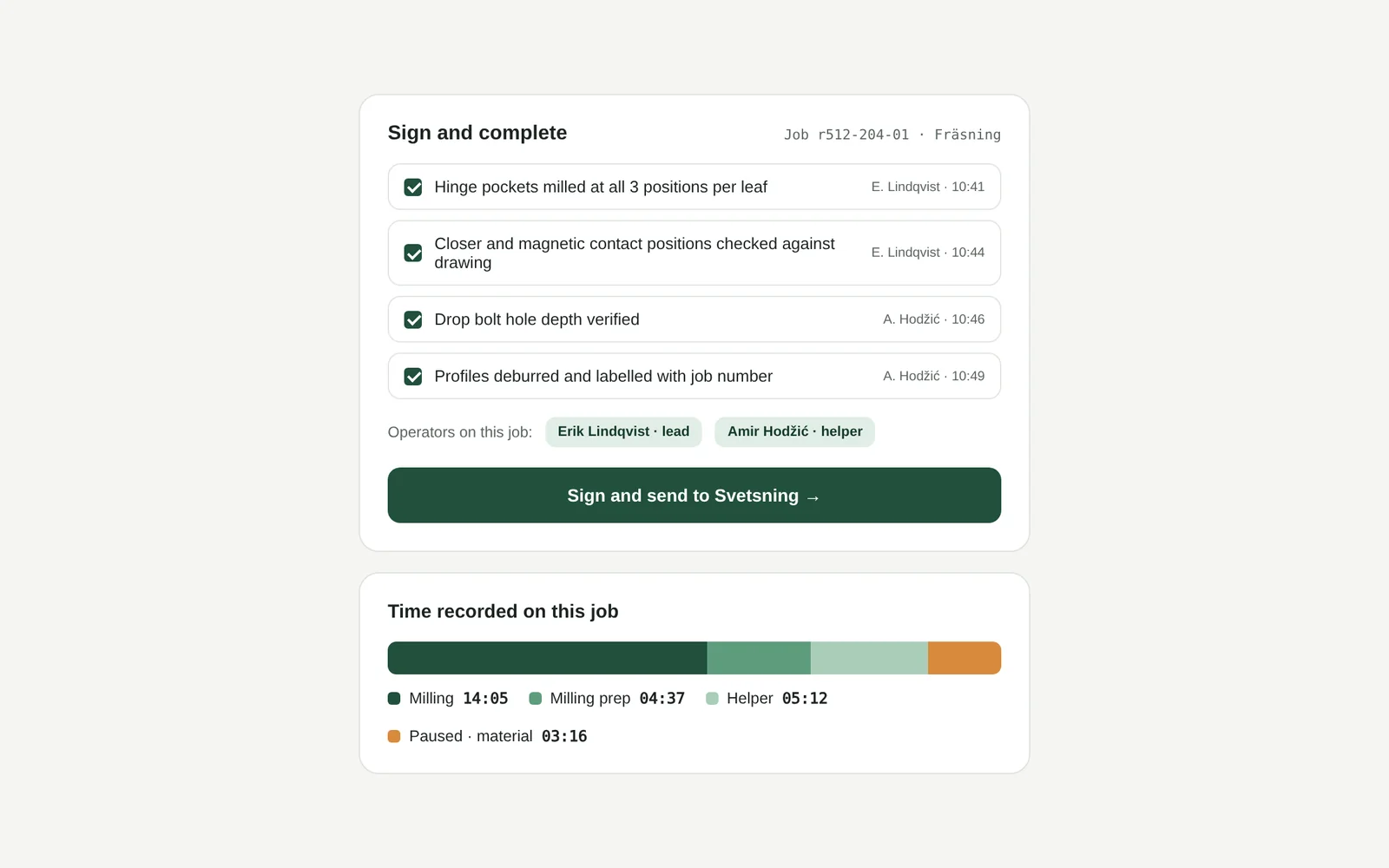
Quality and time

“Signed by a person, timed to the second.”

A job leaves a station only when its control checks are ticked and the operator signs. Helpers added to the job get their own time recorded on it. Pausing splits the clock into accurate categories, so a material wait or a break never counts as machining time.

  • Every check stores who ticked it and when.
  • Pause reasons separate breaks, material waits and machine faults.
  • Completed time is exported to KBK per job and per category, so costing uses real hours.
KBK Production sign-off dialog with control checks and a bar of recorded time per category
Control checks with who ticked them, then the time recorded on the job, split by category.

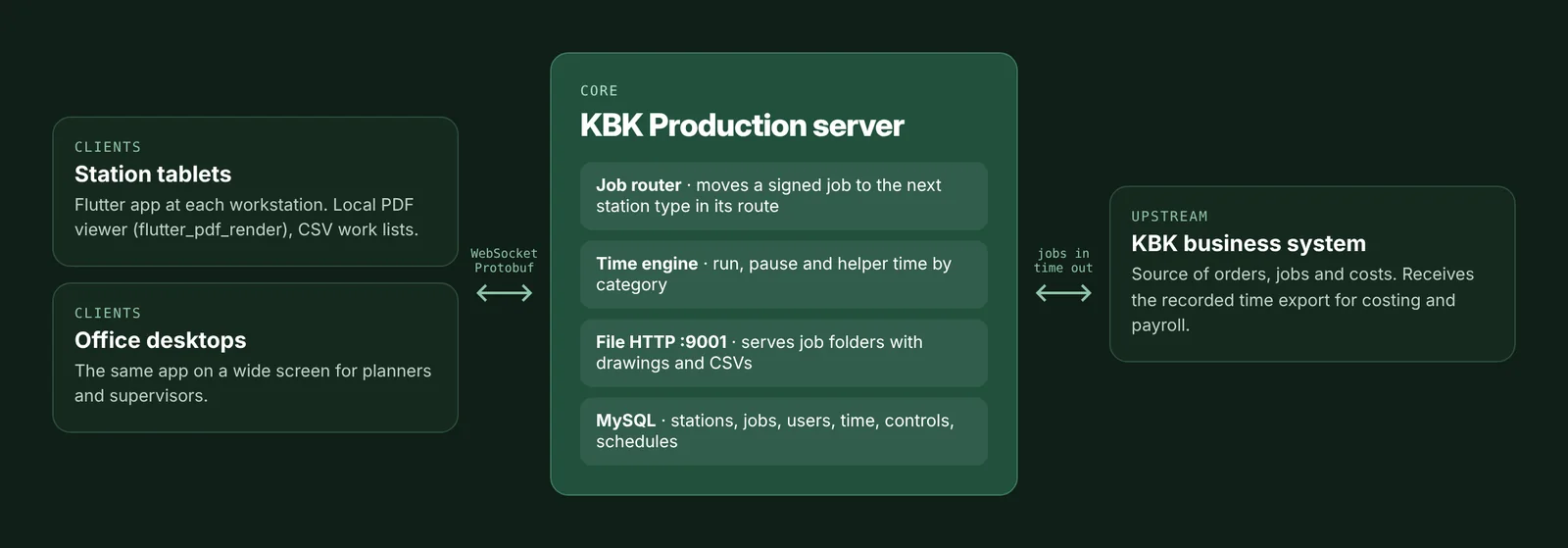
Architecture

“How does every station stay live?”

Tablets keep a single WebSocket open to the server. Every message, from “job started” to “queue updated”, travels in one Protobuf envelope with typed payloads, so new message types never break older clients. Drawings and lists are served as plain files, which keeps large PDFs out of the real-time channel.

  • Job router: moves a signed job to the next station type in its route.
  • Time engine: run, pause and helper time by category.
  • File server on port 9001: job folders with drawings and CSV files.
  • MySQL: stations, jobs, users, time, controls and schedules.

A sign-off at one station appears in the next station’s queue in real time, with no refresh and no polling.

KBK Production architecture: station tablets and office desktops connected over WebSocket to the server, which exchanges jobs and time with the KBK business system
Tablets and desktops talk to one server over WebSocket; jobs come in from KBK and recorded time goes back.
/ Case study
N. 01

Automatic saw cutting steel profiles at the cutting station
Cutting: steel profiles cut to length and mitred from the cutting list.
Welder joining the corner of a steel door frame in a jig
Welding: frames and leaves welded in jigs.
Two workers assembling a glazed steel door on the bench
Assembly: glass and hardware fitted, line by line.
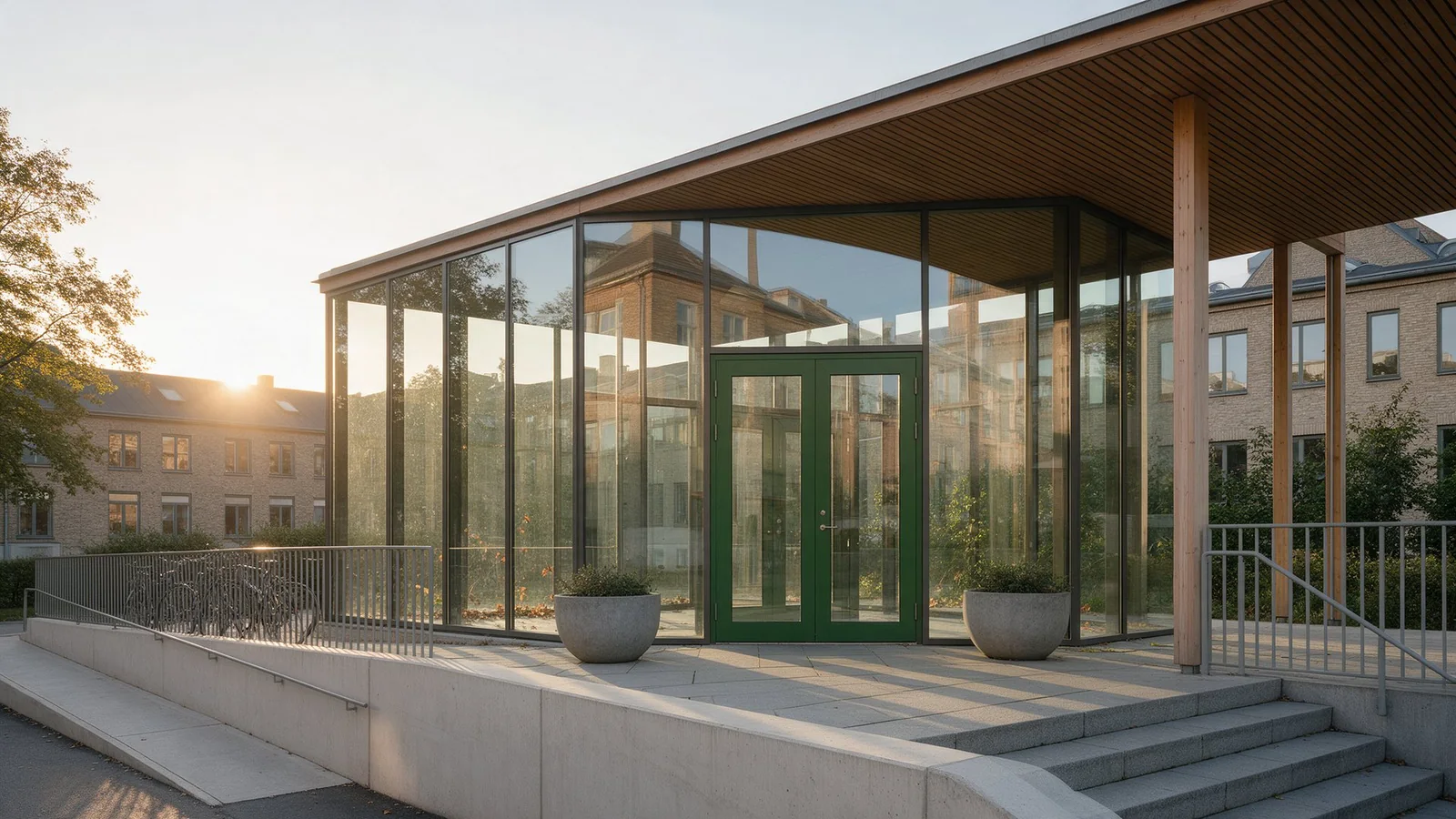
Building entrance with glazed steel doors
The end of the line: an entrance with Stålprofil doors, each one signed and timed through eight stations.
/ Key decisions
N. 05

Designed for the shop floor, not the office.

Most decisions came down to one question: what does an operator with gloves on, standing at a machine, need to do next?

Pick your name, don’t type a password.

Tablets are shared and operators wear gloves. Choosing a name from a list takes one second, and the station tablet sits inside the factory network.

Trade-off Relies on trust and physical presence; time records are still tied to a named person.

The station decides the queue.

Operators should never search for work. Choosing a station filters jobs to that station type, so the queue is always the right one.

Trade-off Jobs need a correct route from KBK; a missing step shows up as a job that never arrives.

One Protobuf envelope over WebSocket.

A single typed message wrapper keeps tablets and server in sync in real time, and new payload types can be added without breaking older tablets still on the floor.

Trade-off A schema to maintain, in exchange for small, fast, versionable messages.

Files over HTTP, events over the socket.

Drawings can be several megabytes. Serving job folders from a plain file server keeps the real-time channel fast and lets PDFs cache on the tablet.

Trade-off Two channels to secure and monitor instead of one.

Pause splits time into categories.

If a pause simply stopped the clock, waiting for material would vanish from the data. Categories keep the reason, so planners see where time is really lost.

Trade-off One extra choice when pausing, the only time operators are asked to decide anything.

/ In numbers
N. 06

8

station types from cutting to packing

8

steps in the operator loop

6

CSV work lists per job, plus the drawing

1

message envelope for all real-time traffic

/ Reflection
N. 07

What the factory taught us.

On a shop floor the best interface is the one nobody has to think about. Every extra tap costs a glove coming off, so most of the design work was removing decisions: the station decides the queue, the job decides the drawing, the sign-off decides where the job goes next.

Building it alongside Stålprofil’s in-house development team meant every decision was tested against how the factory really works, and the system stays in hands that know it after launch.

Next, we would add a supervisor wall display showing every station’s queue and bottlenecks in real time, barcode scanning of job labels to open a job instantly, and offline buffering so a dropped Wi-Fi connection never loses a minute of recorded time.

“We have worked with Arnela for several years developing Stålprofil AB’s manufacturing and estimation software for doors, windows, and facades. She has a fantastic ability to transform complex requirements into a user-friendly system that our customers rely on daily for estimation and production.” — Stålprofil AB, Google review
/ Start a project
N. 02

Have a similar workflow? → Discuss your project

Tell us what your business does today and what you want to improve. We will help define the next step.